
For classroom teachers
The register, behaviour log, markbook and 24 classroom tools a teacher opens between periods, on one page.
Arrange a demonstration2E1 English · Ms Ferguson
- Ailsa Munro-
- Cameron Reid-
- Erin Docherty-
- Fraser Bell-
- Isla Buchanan-
- Lewis Sinclair-
- Niamh Wallace-
- Rory Fraser-
Ten ways Omni gives teachers time back
Mark a class in seconds
Present, Late and Absent use your school's own codes, and one click marks the whole class present. The saving state is always shown, so there is no doubt the marks went through.
Log a merit between questions
Log a merit, demerit, referral or a pupil leaving the room from the pupil's row on the register, or give a merit or demerit to every ticked pupil at once.
Set homework once, collect it online
Set homework for one or more classes with dates, marks and up to ten attachments. Pupils see it in their portal, hand work in online, and you see status, score and feedback in the markbook.
Opens on the right class already
The register reads the time and opens the class you are teaching now, including cover lessons, free periods and non-contact time. A date picker allows back-filling.
Keeps working when the network drops
Registers continue from a copy saved on the device and sync when the connection returns. The copy belongs to the teacher who took it and is cleared at sign-out.
One markbook, feeding everything else
Enter scores against each assessment and homework, publish results to pupils and parents, reschedule for absent pupils and export to CSV. The same marks feed attainment analysis and the report suggestions.
Write reports with the evidence beside you
Write per class, submit, and the principal teacher approves or returns with a comment. Each pupil's earlier reports in the subject sit beside the comment you are writing.
24 classroom tools, one click from the register
Random picker, think time, secret student, timers, dice, coin flip, spinner, soundboard, groups, pairs, rotating partners, tournament, scores, check-in, emoji reactions, marking sample, focus board, whiteboard and more.
One keystroke before you project
Ctrl+Shift+P shortens every surname to an initial, hides safeguarding and entitlement flags and blurs sensitive notes and figures on every screen. Printing is unaffected.
Seating plans that remember themselves
Drag pupils into place for several rooms, or seat them automatically by name, at random, spacing out demerits or mixing ability. The plan is there next lesson and prints.
- + 28 more featuresGet in touch to find out more →
The screens
Captured from Omni Academy, our demonstration school. All pupil data is synthetic.
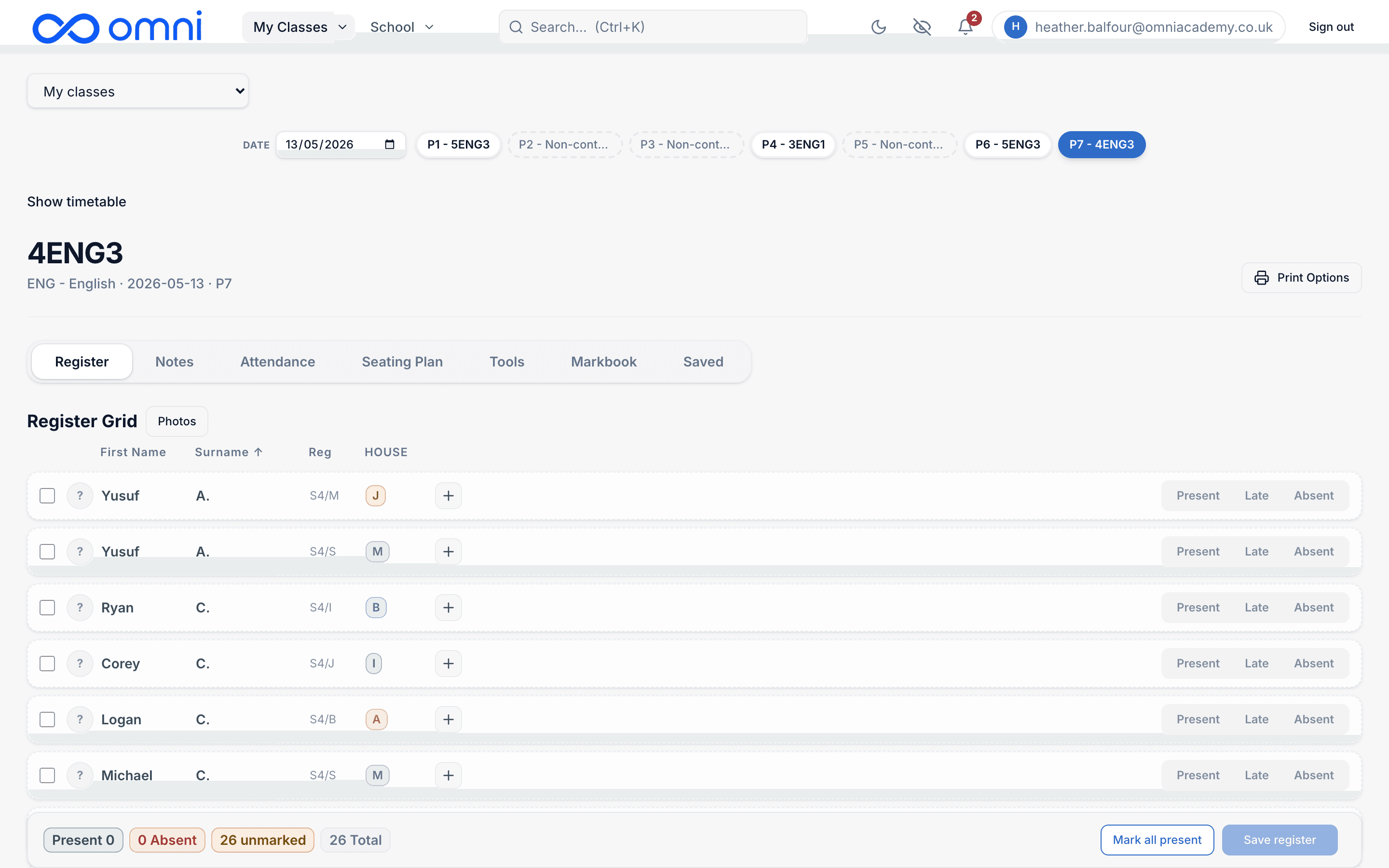
The register, in seconds
Opens on the right class for the period you are in. Present, late or absent in one tap, with notes, seating, markbook and the teacher tools on the same screen.
- Opens on the class you are teaching now
- Notes, seating, markbook and tools in tabs
- One tap per pupil
- Present, absent and unmarked counted as you go